Check-ins
A check-in is how you log a session and share it with friends. You can add a note, a photo, the strain you smoked, and rate how the spot felt.
How to create a check-in
There are two ways to open the check-in form:
- Tap the + button on the Map, then tap Check-in.
- From the Map, tap a spot pin → tap the spot card → tap Check In.
Filling in your check-in
Photo
Tap the image box at the top to add a photo from your camera roll or take a new one. Photos are optional but make your post much more vivid in the Feed.
Your thoughts
Write a short note about how your session went. A sentence or two is plenty — or leave it blank if you prefer.
Spot
Tap Pick a spot to select the location you're at. If the spot doesn't exist yet, tap No spot here? Add it now to propose one on the spot.
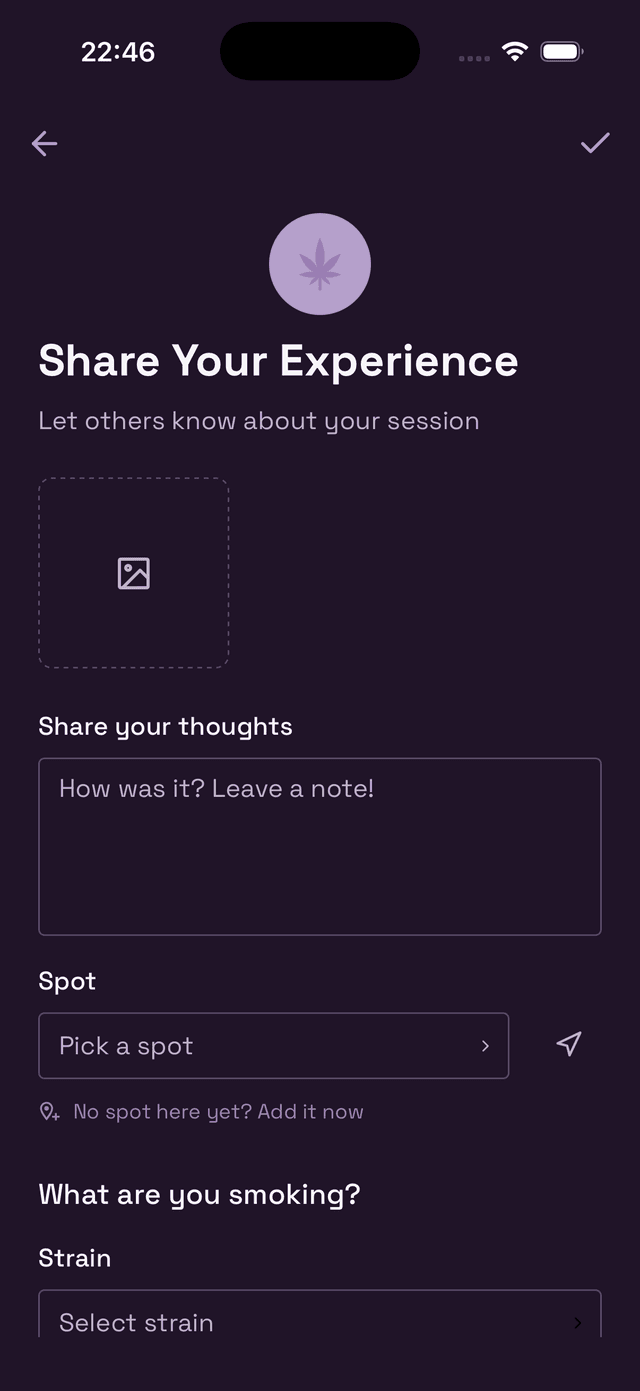
What are you smoking?
Select the strain you're using from the list. Can't find yours? Tap Can't find it? Add a custom strain to enter it manually.
Then pick your method — Joint, Blunt, Bong, Vape, etc.
Rate this strain
Slide the rating bar to score the strain from 0 to 5 leaves. This feeds into Wietly's strain database and helps other users know what to expect.
Tag your friends
Tap Select friends to tag anyone who was with you. Tagged friends will see the check-in in their feed even if you set it to private.
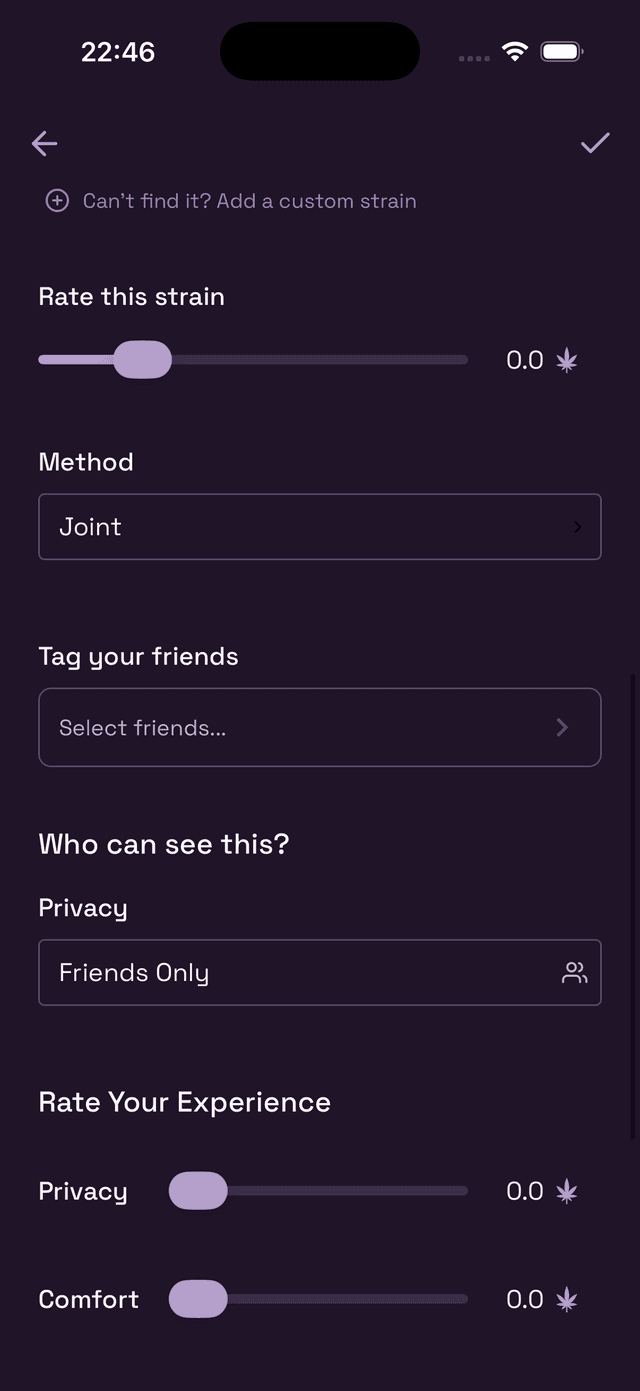
Privacy & ratings
Who can see this?
Choose one of three privacy levels:
- Public — Anyone on Wietly can see it in the Discover feed.
- Friends Only — Only your friends see it.
- Only Me — Stays private in your own history.
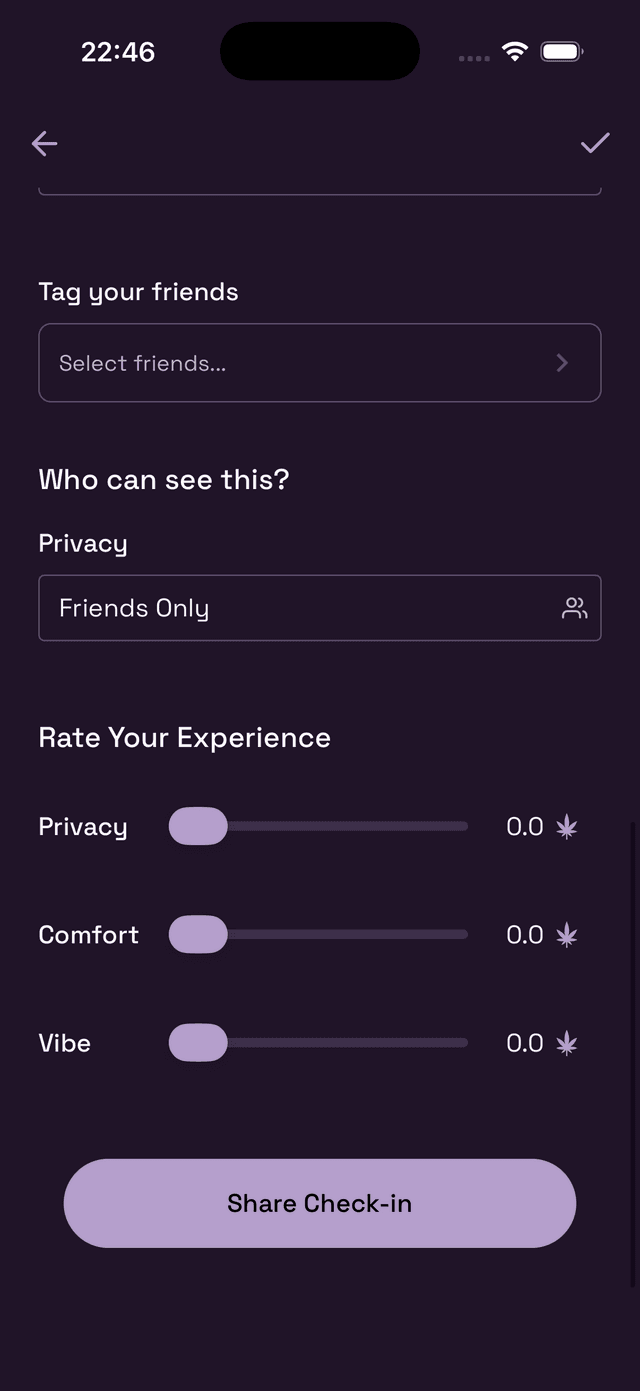
Rate your experience
Three sliders let you rate the spot itself — not the strain. Drag each slider from 0 to 5:
- Privacy — How hidden or secluded the spot felt.
- Comfort — Seating, shelter, and overall comfort.
- Vibe — The overall atmosphere and feel.
When you're ready, tap Share Check-in to post it.
Editing or deleting a check-in
Open the check-in from your Feed or Profile, tap the ⋯ (three dots) in the top-right corner, and choose Edit or Delete.