Settings
Personalize how Wietly looks and how it discovers spots around you.
Opening Settings
Tap the Profile tab in the bottom nav, then tap the gear icon in the top-right corner.
Profile photo & username
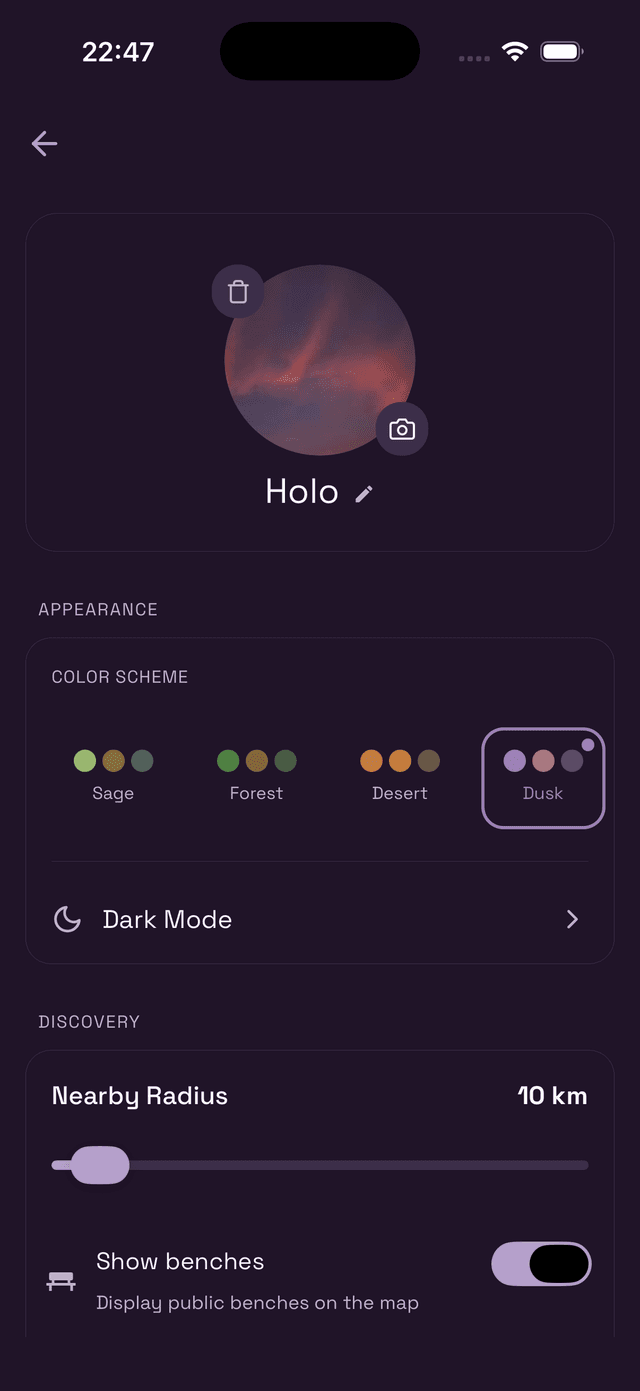
At the top of Settings you'll see your profile photo and username. Tap the camera icon to change your photo, or the pencil icon next to your name to edit your username.
Tap the trash icon to remove your current photo.
Color Scheme
Choose from four color themes that change the accent colors throughout the app:
- Sage — The classic Wietly green palette
- Forest — Deep, earthy greens
- Desert — Warm amber and orange tones
- Dusk — Soft purples and mauves
Tap any scheme to preview and apply it instantly.
Dark Mode
Tap Dark Mode to switch between light and dark. You can also set it to follow your phone's system setting automatically.
Discovery settings
Nearby Radius
The Nearby Radius slider controls how far the app looks for spots when you're in Nearby Mode on the map. The default is 10 km. Drag it left to narrow the search or right to expand it.
Show Benches
Toggle Show benches to display public bench locations on the map alongside spots. Useful if seating comfort matters to you.
Account settings
Scroll down past Discovery to find account options including Change Password, Notification Settings, and Delete Account.
If you want to permanently delete your account and all associated data, visit our account deletion page or do it directly from within the app.