The Map
The Map is your home for discovering cannabis-friendly spots. Open it by tapping Map in the bottom navigation bar.
Finding spots around you
When you open the map, you'll see red pins scattered across your area — each one is a community-submitted spot. The counter at the bottom tells you how many spots are currently in view.
Tap any pin to see a quick preview of that spot — its name, distance, rating, and a photo if one has been added. Swipe up on the preview card to see full details.
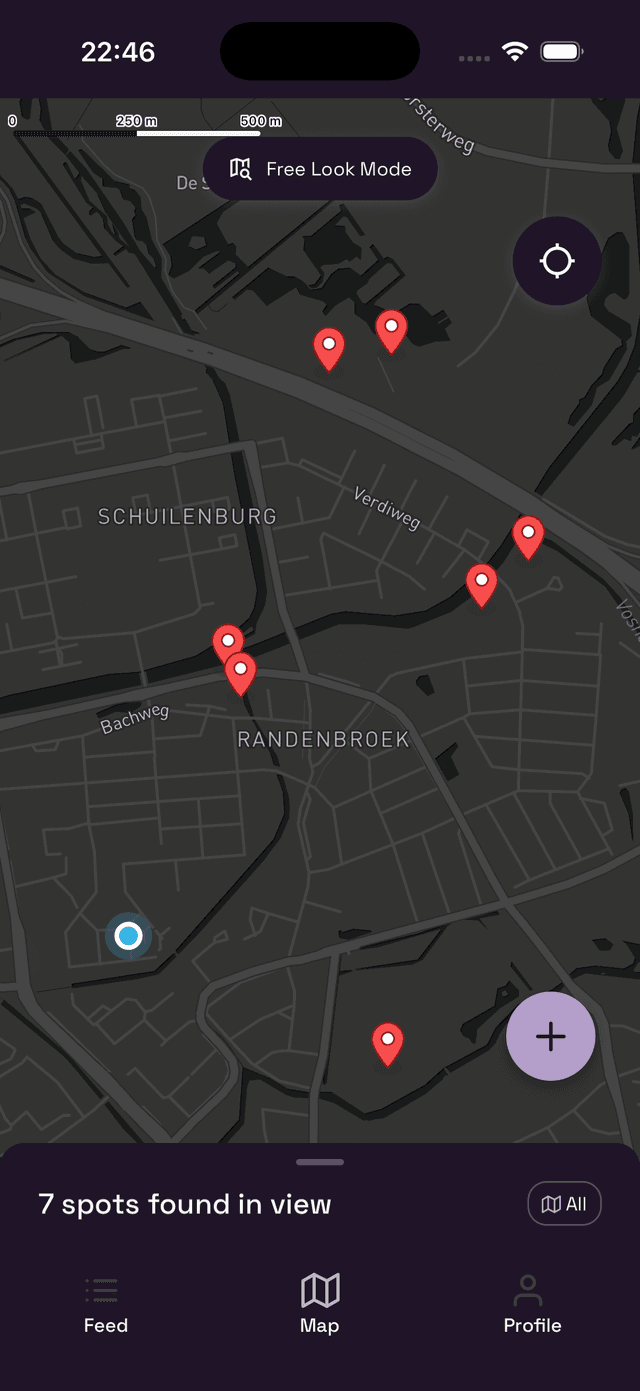
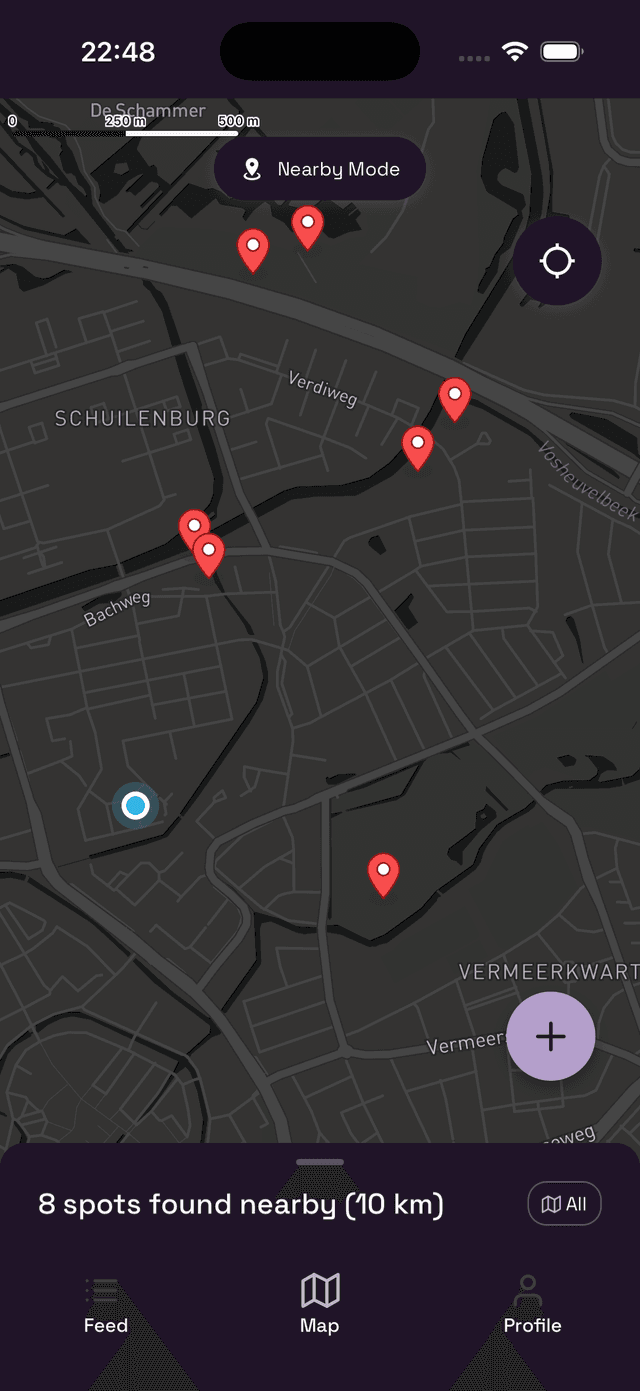
Free Look vs. Nearby Mode
There are two ways to explore the map:
- Free Look Mode — Pan and zoom freely across the map. Spots update as you move the map around. Great for planning ahead or exploring other areas.
- Nearby Mode — The map stays centered on your current location and shows only spots within your set radius (see Settings). Perfect for finding somewhere to go right now.
Switch between modes by tapping the banner at the top of the map screen.
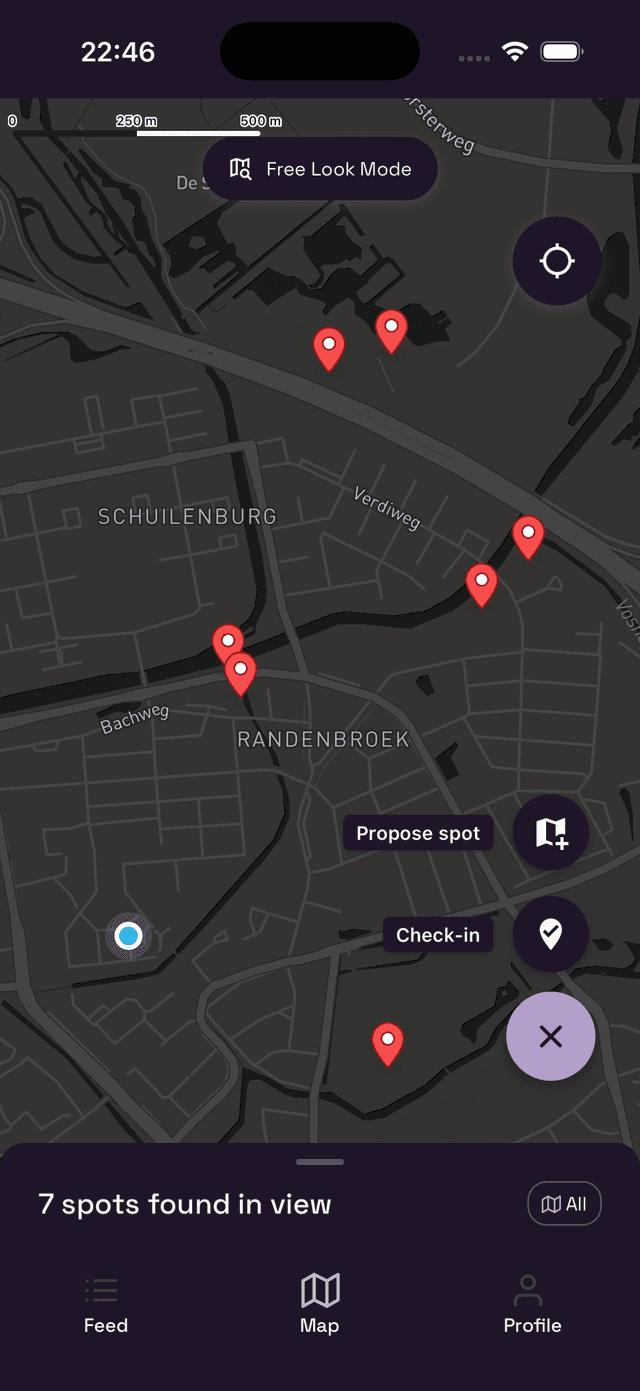
Quick actions
Tap the + button in the bottom-right corner to reveal two quick actions:
- Check-in — Log a session at your current spot.
- Propose spot — Submit a new location for others to discover.
Tap × to close the menu without doing anything.
Centering on your location
Tap the compass icon in the top-right corner of the map to instantly jump back to your current location. If the map doesn't move, make sure Wietly has permission to access your location in your phone's Settings app.
Restricted zones
In countries with distance-based consumption laws, Wietly highlights the areas affected directly on the map as a translucent red overlay. In Germany, for example, public cannabis consumption is banned within 100 meters of schools, kindergartens, playgrounds, and sports facilities under the Cannabis Act (KCanG) — zoom in on the map to see exactly where those zones fall.
Whenever red zones are visible, a small legend appears explaining what the highlighted areas mean. If you're viewing a country with legal information on file, a "Know the rules" pill also appears — tap it to see that country's key facts: minimum age, possession limits, home-grow limits, and whether public consumption is allowed.
This information is provided to help you stay informed and is not legal advice. Laws vary by location and can change — when in doubt, don't consume in public.